· reAPI Team
Kling Image 4.0 Tutorial
This Kling Image 4.0 tutorial builds a product image series with named references, 2K and 4K settings, a request you can run, and checks for the final images.
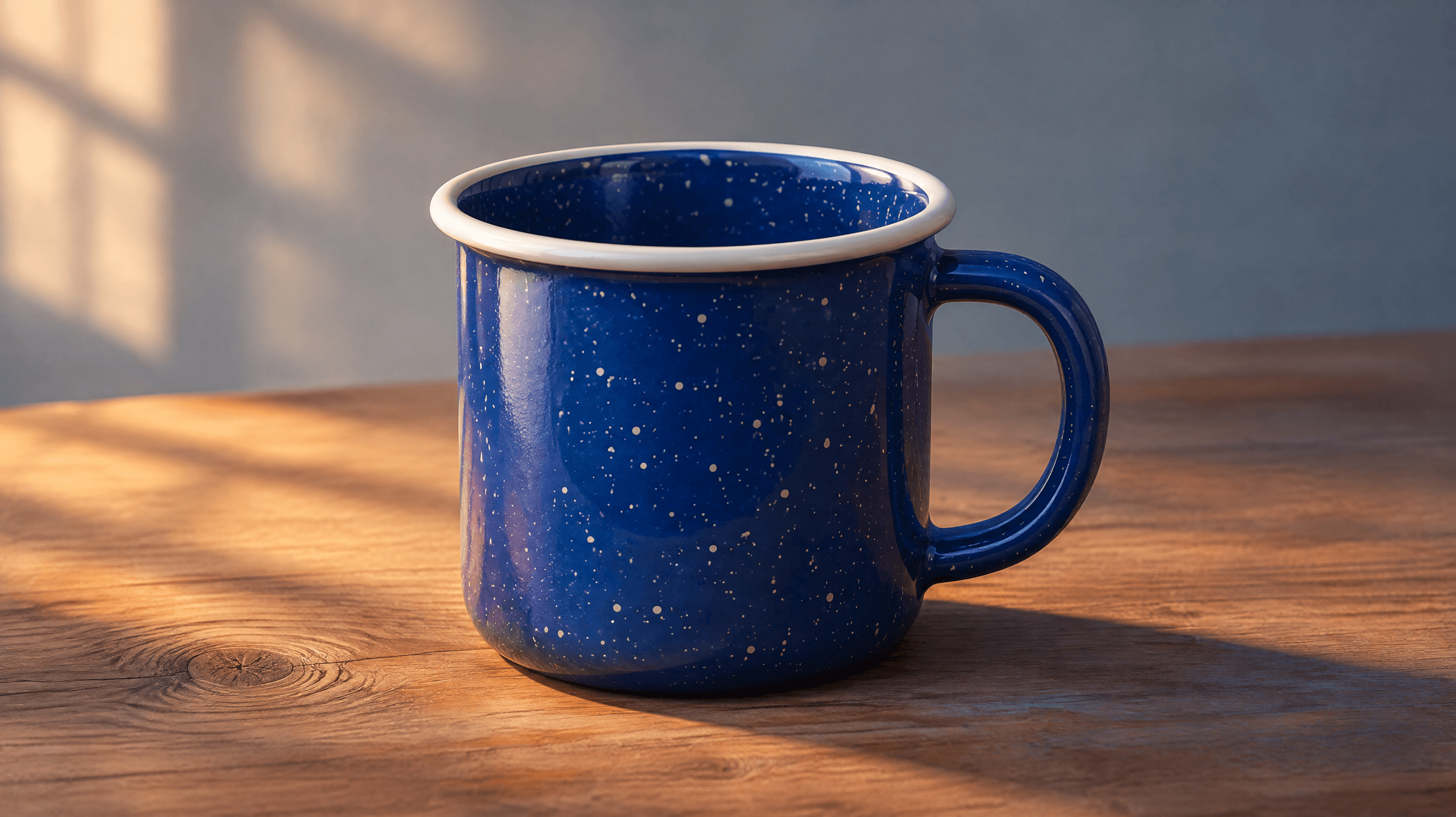
A product launch might need three stills from the same setup. The first shows the whole product, the second explains a detail, and the third leaves space for a headline. With Kling Image 4.0, you can give all three shots the same visual brief. This tutorial starts with a one-image request we ran, then shows how to plan a set around a photograph of a blue enamel camping mug.
Kling released the image model on November 18, 2026. Its creator describes related image sets as one of the release’s capabilities.[1] The settings in this guide are for the reAPI integration, which serves 2K and 4K still images with optional reference inputs.[2]
Run one square image first
An initial text-to-image request gives you a result you can inspect before adding reference links or increasing the output count. Use a single subject and describe a light direction and a surface. Those details are easy to compare against the generated image. A brief like “premium product image” leaves all three up to the model.
For our local integration test, we sent one square 2K Kling Image 4.0 request for an amber glass teapot on blue slate. The completed job returned one PNG at 2048 × 2048 pixels. That verifies the submit, poll, download, and billing flow for this particular request. The reference-guided examples below are briefs to try.
curl https://reapi.ai/api/v1/images/generations \
  -H 'Authorization: Bearer YOUR_API_KEY' \
  -H 'Content-Type: application/json' \
  -d '{
    "model": "kling-image-4-0",
    "contents": [{
      "type": "prompt",
      "text": "Studio photograph of a transparent amber glass teapot on matte blue slate, soft side light and a clean backdrop."
    }],
    "settings": {
      "result_type": "single",
      "n": 1,
      "resolution": "2k",
      "aspect_ratio": "1:1"
    }
  }'
Save the task ID from the response and poll until the status is completed. Open the image at its intended display size. Check that the viewer can recognize the subject and that its most important details fit inside the crop. Review the result at full size when the test depends on small features such as the shape of a lid or a glass handle.
Choose single or series mode in Kling Image 4.0
| What you need | Mode | Count field |
|---|---|---|
| A first image to evaluate a prompt | Single | n: 1 |
| Several independent candidates for one placement | Single | n from 1 to 9 |
| Related stills for one story, listing, or campaign | Series | series_amount from 2 to 10 |
Single mode gives you independent interpretations. It is useful when you are deciding which surface or background suits a mug photograph. Generate a few candidates, compare the framing and reflections, and keep the brief that best matches the placement. With series mode, you can instead assign one job to each still. Plan a catalog view, a rim close-up, and a scene that communicates the mug’s size.[2]
Decide what must persist across the set before describing each image. The same cobalt enamel, speckle pattern, cream rim, and handle shape give you four visual details to compare. Let the view and composition vary. Include the expected sequence in the prompt so a reviewer can tell whether each shot has a different purpose.
Make a product series from named references
Use a product photo with the handle and rim visible. If a second photo supplies the setting, give it a separate name. The names let the prompt identify which reference governs the product and which governs the background. A single image can be enough when it already shows the correct product, surface, and light.
The example below assigns @mug to the product. It asks for three related compositions at a common 3:2 aspect ratio. Replace the example URL with your own reachable JPEG or PNG before sending it.[2]
{
  "model": "kling-image-4-0",
  "contents": [
    {
      "type": "refer_image",
      "url": "https://example.com/enamel-mug.jpg",
      "id": "mug"
    },
    {
      "type": "prompt",
      "text": "Three photographs of @mug on warm cedar. Keep the cobalt enamel, speckles, cream rim, and handle consistent. Image 1 shows the whole mug in a three-quarter view. Image 2 is a close-up of the rim and speckles. Image 3 places the mug on the right with open cedar on the left for copy. Use soft morning light for all three."
    }
  ],
  "settings": {
    "result_type": "series",
    "series_amount": 3,
    "resolution": "2k",
    "aspect_ratio": "3:2"
  }
}
Keep the names distinct if you add more references. For example, add @cedar for the surface and write “Use the mug from @mug and the texture from @cedar.” Review the two references for conflicting lighting before combining them. If a scene is supposed to look like soft morning light, a harsh flash reference can make the instruction harder to evaluate.
Before you submit to Kling Image 4.0, open each reference URL in a browser where you are signed out. A link can work in your asset dashboard and still require credentials to fetch the file. Select a clean view with the feature you want to preserve in focus. If the mug’s handle defines its silhouette, a photo that hides it behind the body is a poor match for the brief. Keep the original photograph so you can compare later crops against the same source.
Kling Image 4.0 on reAPI accepts up to ten references. Each JPEG or PNG must have both sides at least 300 pixels, an aspect ratio from 2:5 to 5:2, and a reachable HTTP(S) URL. The normal limit is 30 MB per image. For a series of five or more, use images up to 20 MB each, mention every reference, and keep the prompt within 20,000 characters after its reference names are converted to positions.[2]
Choose 2K or 4K for the final placement
Use 2K for evaluating the scene on a product page or campaign draft. Choose 4K when the result has to support a tighter crop, a larger display, or close review of small visual details. The resolution applies to the entire task. If you only need one shot at 4K, request that shot separately and check it alongside the 2K set for continuity.
Select the aspect ratio early. A square listing image leaves different space around a mug than a wide banner. In a banner brief, ask for open space on the side where copy will sit and check that space at the actual display crop. If you need both a wide header and a vertical story, plan a brief for each placement before generating the final assets.
Try a quick layout review with the 2K Kling Image 4.0 draft. Put the headline and call to action where they will appear, then check the same layout at a phone width. Look for lost handle detail, small highlights that turn into glare, and copy over busy grain. If the placement needs more open space, change the composition in the brief before increasing the resolution.
The cost of a Kling Image 4.0 request scales with the output tier, the delivered image count, and the number of input references. Each supplied reference is billed once on a successful task. A three-image series with one reference therefore has three output charges and one reference charge. See the current pricing before requesting a larger set.[3]
Retrieve and check the full set
Use the ID from the submission response with GET /api/v1/tasks/{id}. When completed, read the full array in output.image_urls. Store the images and the request settings with your project. The settings tell another person which reference guided a shot, what ratio was requested, and how to reproduce the brief for a different placement.[4]
Keep the approved Kling Image 4.0 task ID with the files. If you later revise one still, save the new task ID with that version while keeping the rest of the approved series together.
Before delivery, review all the files as a set.
- Count the returned files and confirm each has the intended crop.
- Compare the mug’s rim, handle, color, and finish across the set.
- Check that the close-up and the wide view each serve their intended placement.
- Compare the completed image count with what you requested when reviewing the charge.
If one Kling Image 4.0 result misses the intended crop, revise that shot’s framing instruction and check the new image against the approved set. If polling is interrupted, look up the original ID first. Each fresh submission can create a separate generation.
Start with the Kling Image 4.0 playground. Once the first image has the right subject and framing, use the request reference to carry the same brief into a repeatable series.
References
- Kling AI, Nov. 18, 2026. Kling Image 4.0 launch announcement.
- reAPI, checked Nov. 19, 2026. Kling Image 4.0 request and mode reference.
- reAPI. Kling Image 4.0 live rates.
- reAPI. Task retrieval and public responses.