GPT Image 2.5 is live — OpenAI's newest image model, targeted edits that leave the rest of the frame alone

MAI Image 2.6 — Create Images With Clear Direction

Turn a brief into a product scene, refine an image with references, or explore a new visual layout. MAI Image 2.6 combines image creation, editing, and optional web context in one workflow.

Highlights
Text-to-image · 5 references · 1K and 2K
Best for
Product scenes, reference edits, visual layouts
Input
Text and optional reference images
Output
One PNG image per request
Input

Required for generation and editing. The documented context limit is approximately 32,000 tokens.

0/5 files

Public HTTP(S) URLs only. With references, the model chooses output size and ignores the size controls.

Use auto, a ratio between 1:4 and 4:1, or dimensions such as 1536x1024. Applies to text-to-image.

MAI Image 2.6 supports 1K and 2K, not 4K. Explicit pixels override this setting.

Off by default. Equivalent to requesting size auto.

Off by default. MAI Image 2.6 still needs a clear prompt; review factual details in the result.

Estimated cost~$0.03838 credits
Result

Try one of these prompts

Pricing

Credit-based — 1 credit = $0.001 USD. Pay only for completed generations.

First test cost
$0.03838 credits

One sample at the cheapest tier (estimated image).

Testing budget guide
Add credits
$10
≈ 267 tests
$50
≈ 1338 tests
$100
≈ 2676 tests
1K · no references · estimate
$0.038
Price · estimated image
2K · no references · estimate
$0.085
Price · estimated image

What is MAI Image 2.6?

MAI Image 2.6 is Microsoft AI’s image generation and editing model. Describe a new scene or supply reference images and explain the changes you want. MAI Image 2.6 supports up to five references, optional web grounding, and flexible framing for text-to-image work. On reAPI, MAI Image 2.6 uses the images endpoint and returns an asynchronous task ID. The completed task contains a PNG image. Start with a simple composition, inspect the result, and add instructions when the visual direction needs refinement. This page covers the standard model; MAI Image 2.6 Flash is a separate product.

What you can build with this model

Real-world workflows and production use cases you can build and ship with this model.

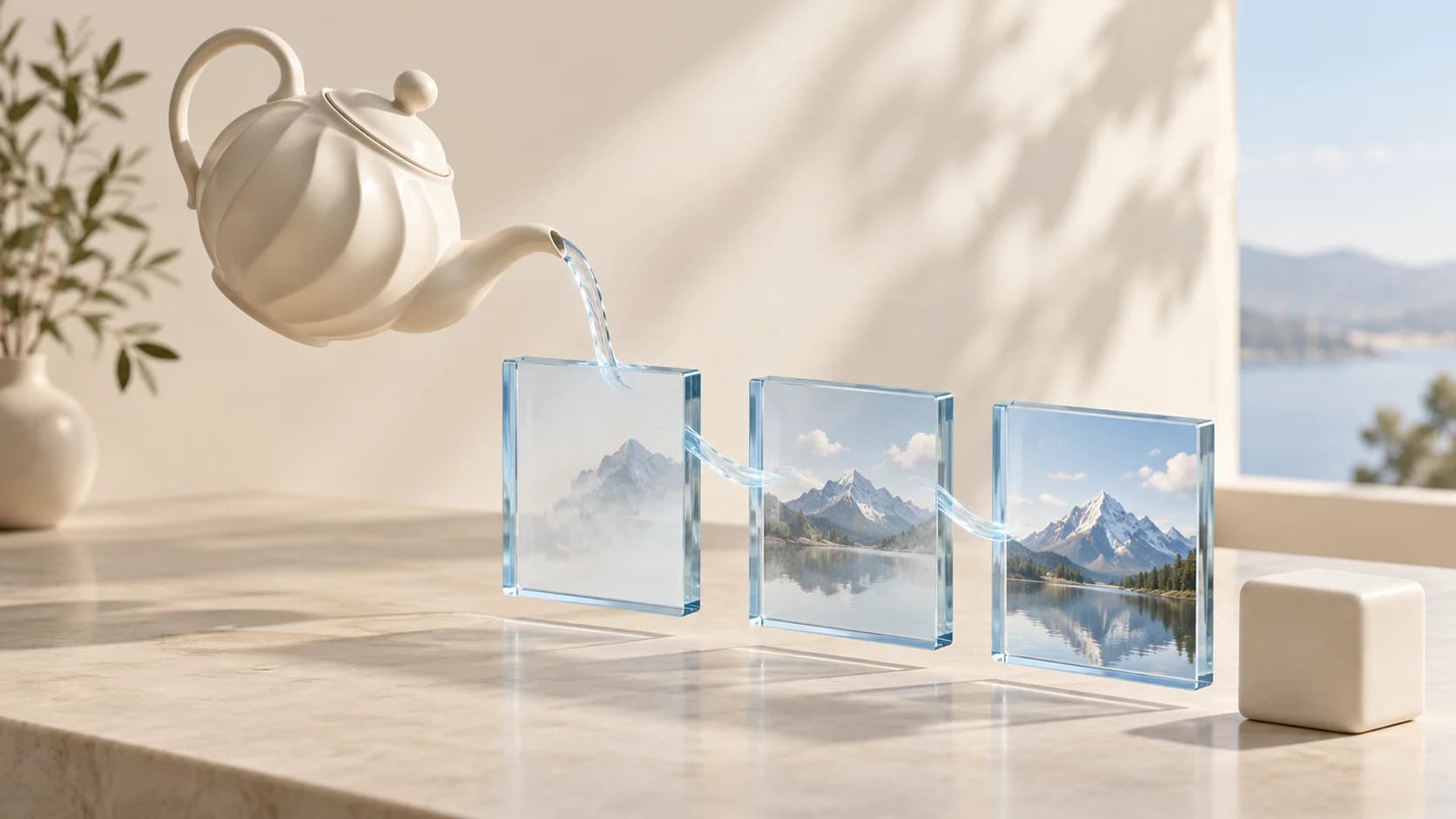
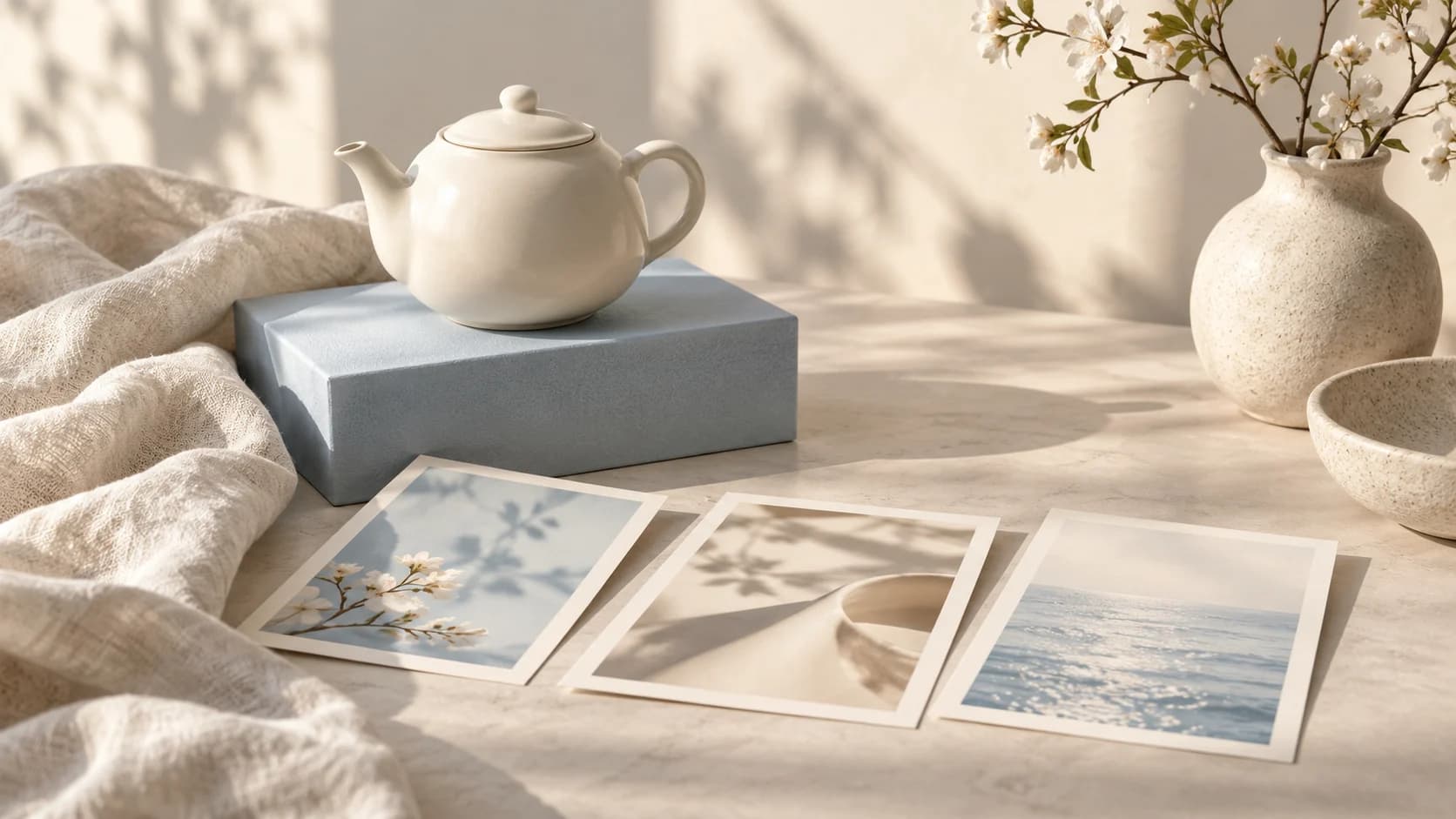
MAI Image 2.6 scenario illustration with an ivory teapot and product composition references

Create a product scene with MAI Image 2.6

Turn a written brief into a studio photograph, a material study, or a campaign concept. Tell MAI Image 2.6 the subject, surface, lighting, and camera view. A ceramic teapot on a pale blue table gives MAI Image 2.6 a concrete starting point; a vague request for a beautiful product image leaves more decisions open. Give MAI Image 2.6 references when the product already exists. Check its silhouette, packaging, and labels before treating a generated concept as a faithful product representation.

Read the MAI Image 2.6 API guide
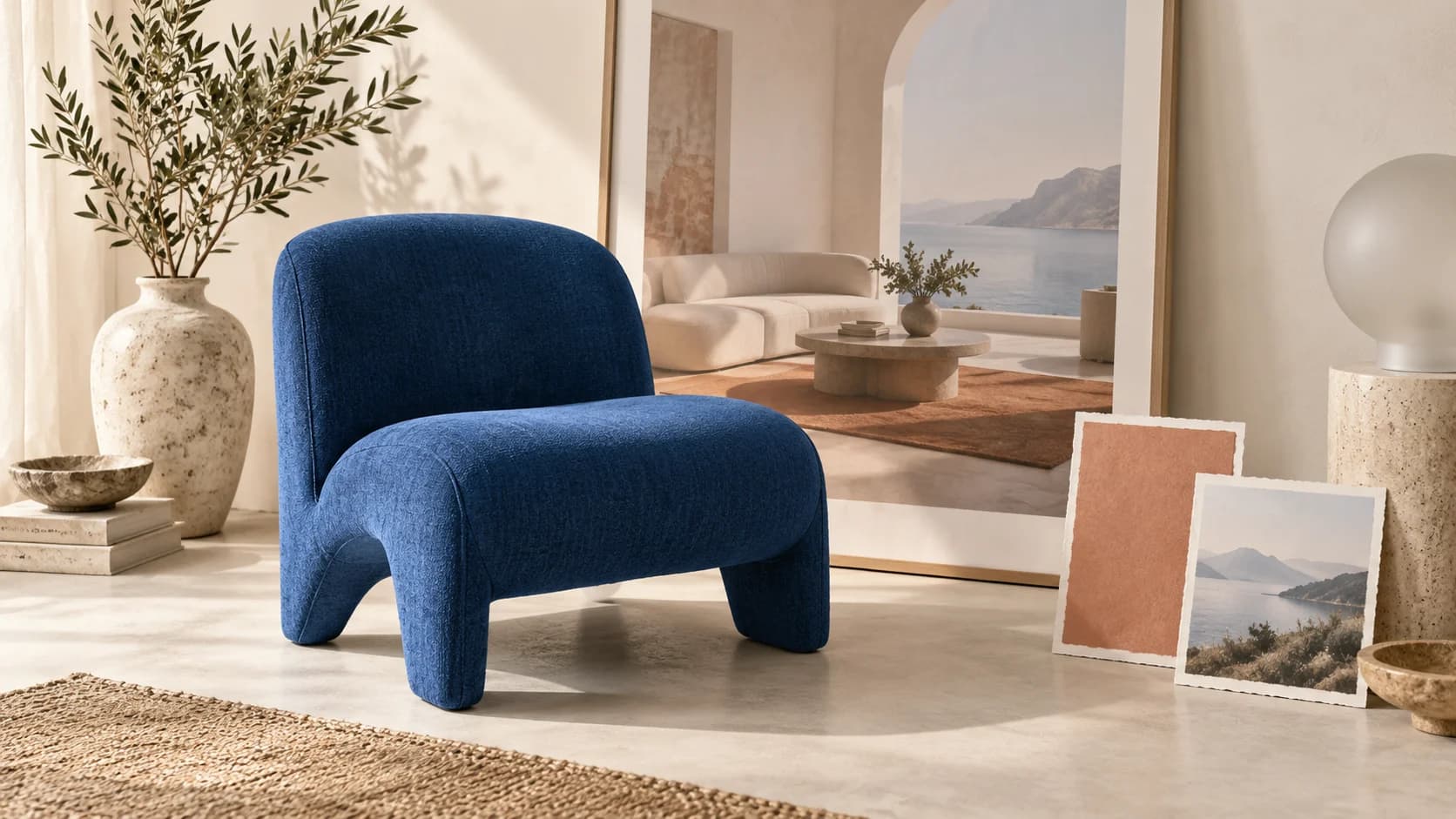
MAI Image 2.6 reference editing concept with a blue chair, room image, and material swatches

Guide MAI Image 2.6 with reference images

Combine a room photograph, a furniture reference, and a color study in one editing request. Tell MAI Image 2.6 which image supplies the scene and which supplies the object. Keep the reference order stable and tell MAI Image 2.6 which details should remain unchanged. MAI Image 2.6 chooses the output framing for reference edits, so fixed dimensions are not a delivery guarantee. Inspect subject identity, edges, reflections, and surrounding details before selecting a result for your project.

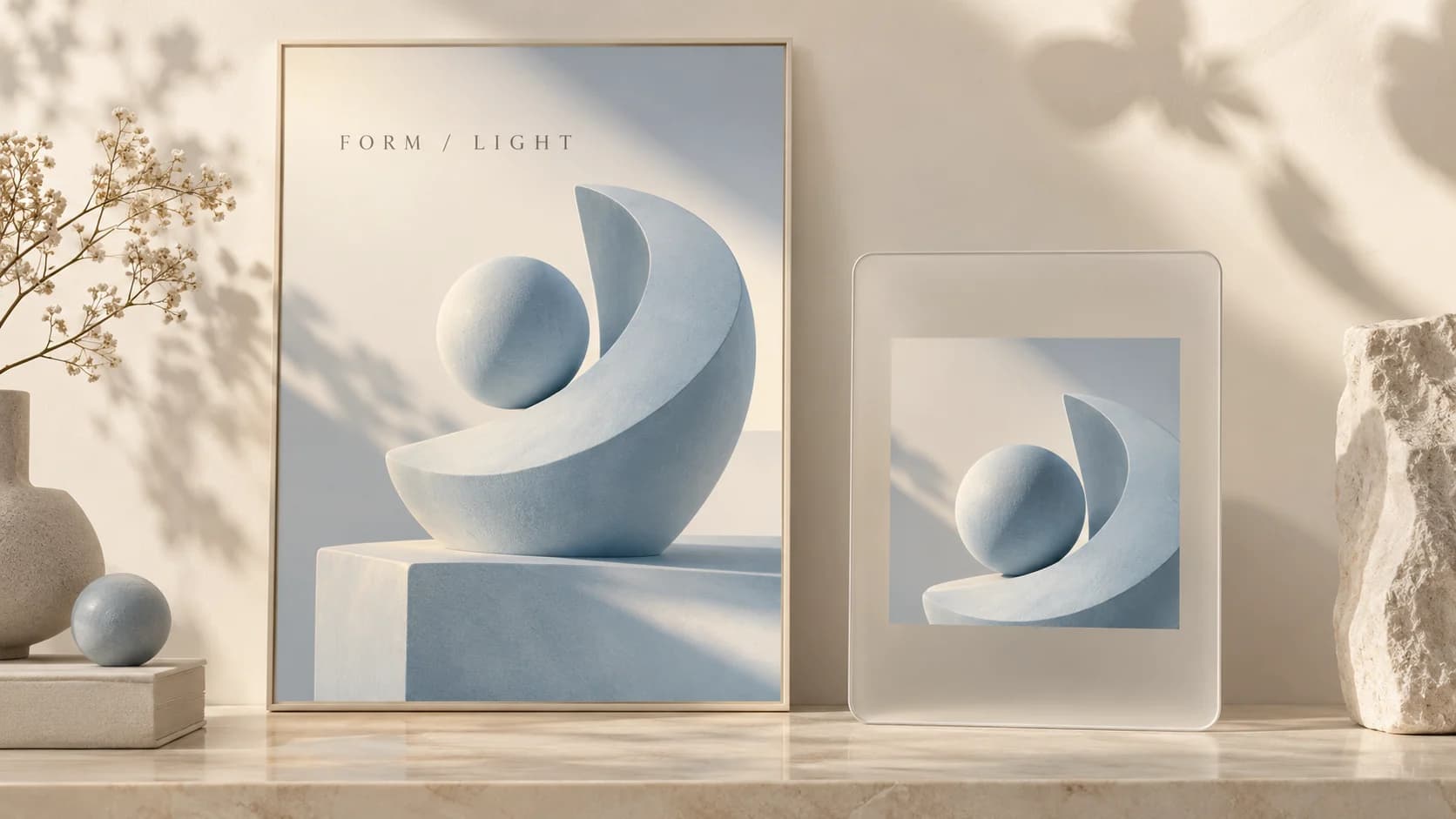
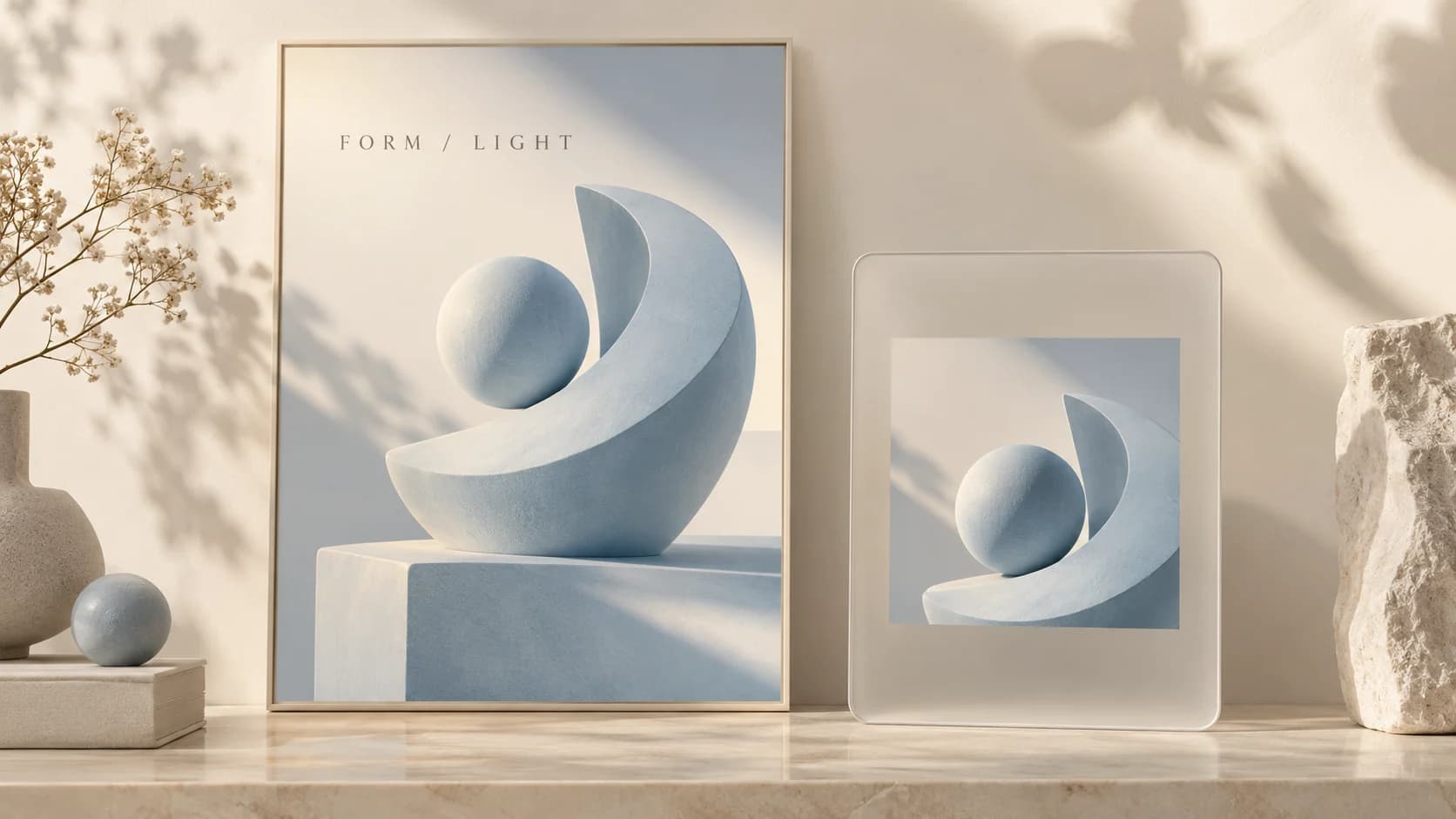
MAI Image 2.6 layout illustration with a museum poster and a square sculpture composition

Explore a layout with MAI Image 2.6

Develop an exhibition poster, a social visual, or an editorial illustration with space for a headline. Ask MAI Image 2.6 for a specific hierarchy, restrained colors, and a clear focal point. For a new MAI Image 2.6 image, choose a square, portrait, or landscape frame, or supply valid pixel dimensions. Put short required wording in quotation marks. MAI Image 2.6 can generate lettering, but proofread it at the final viewing size and add precision typography in your design tool when needed.

Why reAPI for MAI Image 2.6

MAI Image 2.6 starts from your brief

Brief MAI Image 2.6 in ordinary language to describe materials, mood, and composition. Give MAI Image 2.6 the important constraints first, then inspect whether the result follows them before adding more detail.

MAI Image 2.6 accepts visual context

Bring up to five references into one MAI Image 2.6 request. Clear roles help MAI Image 2.6 distinguish the subject to preserve from the style or setting to change.

MAI Image 2.6 makes framing explicit

Set the MAI Image 2.6 frame with a ratio or explicit dimensions. Review the estimate before submitting; MAI Image 2.6 settles the final charge after generation, so the initial estimate is not a fixed price.

MAI Image 2.6 vs MAI Image 2.6 Flash

Microsoft describes Flash as the faster, lower-cost variant. MAI Image 2.6 is the standard model integrated on this page; Flash is a separate model and is not selected by its request ID.

Model choice
MAI Image 2.6
MAI Image 2.6 Flash
Microsoft positioning
High-quality generation and controllable editing.
Faster generation and lower cost.
Documented task types
Text-to-image generation and reference editing.
reAPI selection here
Use model mai-image-2.6.
Not selected or integrated on this page.
Choosing a model
Evaluate when detailed output is the priority.
Evaluate separately when speed and cost are priorities.

Microsoft product positioning, reviewed October 9, 2026; this is not a measured quality or speed comparison. Scenario illustrations explain workflows and are not benchmark outputs.

Start using MAI Image 2.6

  1. step 01

    Get your MAI Image 2.6 key

    Sign in and create a key under Settings → API Keys. Keep it on your server and use your reAPI balance for MAI Image 2.6 requests.

    Open
  2. step 02

    Prepare a MAI Image 2.6 brief

    Describe a concrete subject for MAI Image 2.6 and choose a frame. Add references only when they contribute useful context. Check the estimate and the reference-edit sizing note.

    Open
  3. step 03

    Review your MAI Image 2.6 result

    Submit model mai-image-2.6 to the images endpoint. Poll the returned task ID until completed or failed. Inspect the MAI Image 2.6 output before downloading or sharing it.

    Open
docs/api/mai-image-2-6

API reference

Drop-in code and the full parameter table.

curl https://reapi.ai/api/v1/images/generations \
  -H "Authorization: Bearer YOUR_API_KEY" \
  -H "Content-Type: application/json" \
  -d '{"model":"mai-image-2.6","prompt":"A matte ivory ceramic teapot on a pale blue table, soft daylight, product photography.","size":"1:1","resolution":"1K"}'

Parameter validation failed

Rejected synchronously with the failing field named. Check enum values, ranges, and URL fields — nothing is charged.

Authentication or balance issue

401 means a missing or invalid Bearer key; 402 means the reserve exceeds your balance. Manage keys and credits in the console.

Content or material rejected

Reference material and outputs pass automated moderation. Rejected tasks fail with a clear error and a full refund.

Task failed or timed out

A task that reaches a failed state is never charged — the reserve refunds automatically. Keep the task id and retry when ready.

Frequently asked questions

Common questions about this model.

MAI Image 2.6 generates and edits still images from text and optional references. Each request returns one PNG. Product concepts, reference-guided scenes, and poster layouts are useful starting points.

start building

Ready to ship?

Try it in the playground or grab an API key to integrate now.