· reAPI Team
How to make a Hotel Lobby AI video from two photos
Make a Hotel Lobby AI duet from two separate photos. Follow the recorded Seedance 2.5 draft, assign left and right performers, and download the video with audio.
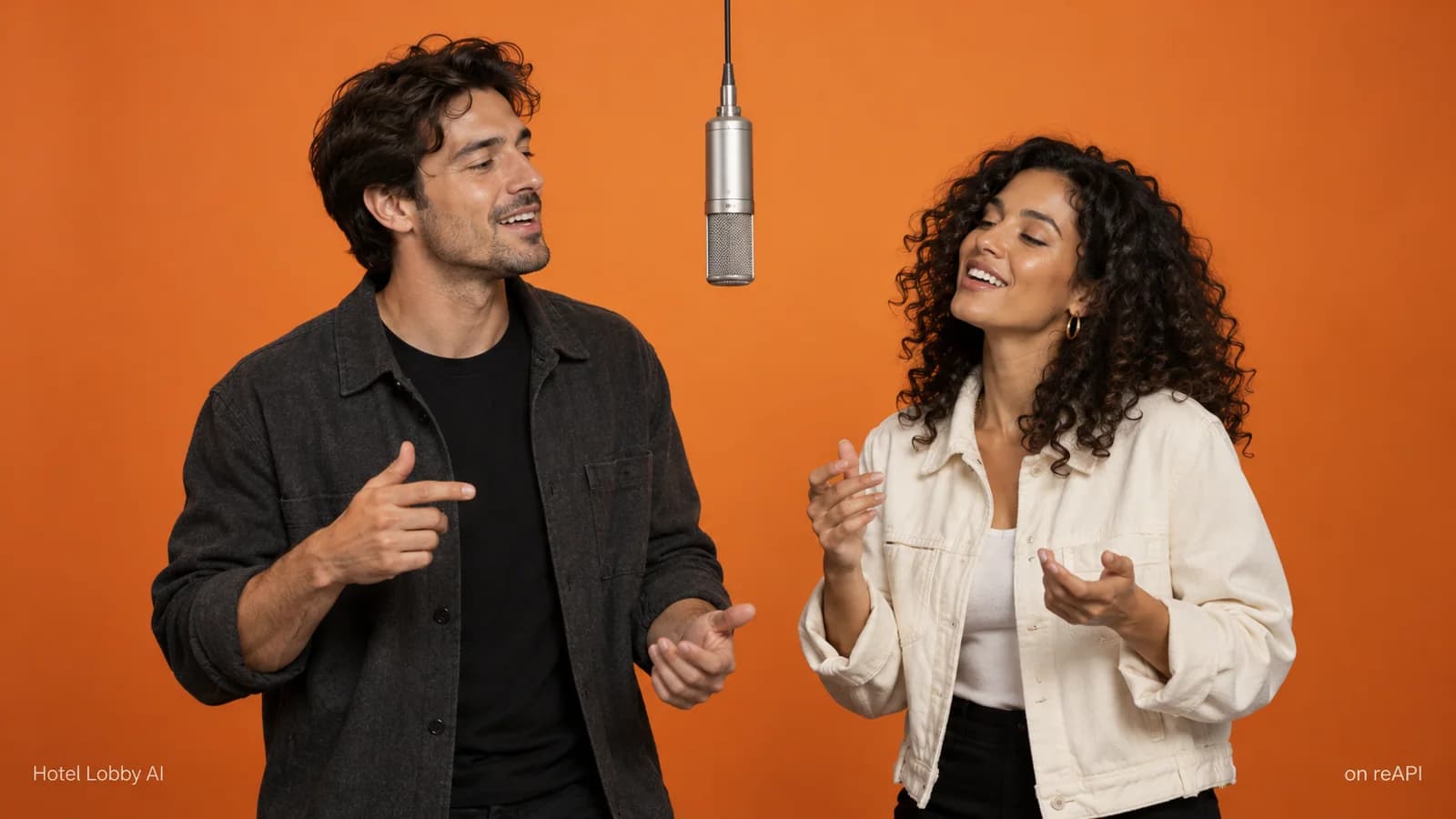
To make a Hotel Lobby AI video, upload one image for each performer, keep their left/right assignments explicit, and use a motion reference for the performance. The reAPI tool adds the original soundtrack after generation. Our October 10, 2026 example used Seedance 2.5 with two fictional adults, a 15-second 480p draft request, and a separate audio-composition step. The inputs, result and request record are below.[1]
This guide follows that particular run so you can inspect what was submitted and what came back. It covers preparing your own photos, choosing the same settings, waiting for the task and checking the finished download. A completed task establishes that a video was produced; you still need to watch it for identity changes, hands, choreography and mouth movement.
Conceptual cover illustration; it is not a tested Seedance output.
TL;DR
- Use two separate identity images: Image 1 is left; Image 2 is right. Each source should clearly identify one performer.[2]
- The built-in line-art reference supplies motion and timing. The images supply appearance; the prompt tells the model to keep these roles separate.[2]
- The recorded example requested
doubao-seedance-2.5-face, 15 seconds, 480p, 16:9 anddraft: true. It is one run, not a comparison of the available models.[1] - The generated API file was silent. The tool automatically adds the original soundtrack before offering the finished video.[1][2]
- Keep the task ID if waiting stops. Check its status before creating another generation; audio export can be retried separately.[2]
Prepare the two Hotel Lobby AI performers
Start with an image that makes each person's appearance easy to identify. Review the face, hairstyle and clothing before uploading. If your source is a character sheet, make sure every panel describes the same character. Do not put two different people in each identity slot and leave the model to choose between them.
The tested inputs were two separately generated fictional adults: a man in black for the left slot and a woman in white for the right slot. They were prepared with GPT Image 2 and retained as individual source files. These images are actual inputs to the recorded video, unlike the conceptual cover artwork.[1]

Left input: the fictional adult in black, submitted as Image 1.

Right input: the fictional adult in white, submitted as Image 2.
You can upload photos or paste image URLs in the Hotel Lobby AI tool. Check the preview in each slot before moving on. If the order is wrong, use the swap control and check both labels again. A filename that says “left” does not override the order of the request's image list.[2]
A multi-view sheet is an optional preparation method, not a proven requirement for this result. The existing character workflow explains portraits and reference packages. Our video used the two separate images shown here; it did not compare a single portrait with a multi-view sheet. Choose material you can inspect and keep the originals with your project.
Generate the duet in four steps
1. Assign a person to each side
Open the tool, sign in and add the left and right inputs. Keep the same two identities throughout your first test. The tool's request lists the left image first and the right image second. In the preset wording, those become Image 1 and Image 2.[2]
Before submitting, ask two concrete questions: does each slot show the intended person, and does the prompt agree with the slot labels? If you borrowed instructions from another tutorial, verify its numbering. Left and right are conventions defined by that workflow, not universal meanings attached to image numbers.
2. Use the reference for movement
The tool includes a 14.92-second line-art motion reference. The preset asks the model to use it for choreography, body gestures, mouth movements, camera framing and timing while ignoring its appearance and line-art style. Your two uploaded images define the performers.[2]
Leave the optional prompt blank to use the built-in preset. A custom prompt replaces it rather than appending to it. If you customize, retain the image bindings and the role of Video 1. The prompt and reference guide gives the full original text and explains which sentences you can revise without losing that mapping.
Avoid starting with several unrelated creative changes. For example, changing the room, microphone, camera and performers at once makes it difficult to tell which instruction explains an unwanted result. The recommendation to change one thing is a review method; this run did not measure its quality advantage.
3. Match the recorded settings
Select Seedance 2.5 to follow this example. The tool's initial model is Seedance 2.0, so check the dropdown instead of assuming the example's model is already selected. Keep the 15-second duration, choose 480p, use 16:9 and enable draft in the advanced settings.[2]
The recorded API parameters were:
{
  "model": "doubao-seedance-2.5-face",
  "duration": 15,
  "resolution": "480p",
  "size": "16:9",
  "generate_audio": false,
  "omni_reference_task_type": "reference",
  "draft": true,
  "content_filter": true
}
These are the settings for the displayed take, not settings proven to be best for every photo. The reference task type describes a new clip guided by source material. The test did not perform a source-video edit, a video extension or a 1080p final render.[1]
Check the estimate after choosing the model and parameters. Video duration, resolution and reference-video input affect billing. Use the current model page for rates and the one-time-use cost guide to plan the workflow. Do not use an old tutorial's price as the amount your next request will cost.
4. Wait for generation and the soundtrack
Submit once and keep the task ID. The documented API generation took approximately 648 seconds, followed by audio composition. That single observation is useful for understanding why the page can still be waiting after several minutes; it is not an average, an SLA or a prediction for your task.[1]
In the tool, generation is followed automatically by adding the original soundtrack. Wait for the finished preview and the download with audio. If the audio step fails, use its separate retry control. You do not need a new video generation simply to resume that step.[2]
If your page stops waiting or the network request fails, preserve the ID and check the task before starting again. An interrupted browser wait does not establish that the server task failed. Read the original error details when available; a missing input, a rejected request and a later audio-export failure are different problems.
Watch the actual 480p result
The video below is the recorded output with the original soundtrack added. Its file contains H.264 video at 854 × 480, 24 fps and 15 seconds, with AAC audio. This is a playable result from the stated inputs, not a conceptual example or a 1080p upgrade.[1]
Recorded Seedance 2.5 draft, 480p, with the original soundtrack added.
Open the public workflow record to inspect the original request, task ID and media properties. It also links the silent intermediate file. The soundtrack's presence confirms an audio stream, not perfect lyric-level lip-sync or exact frame-by-frame choreography.
Play the clip all the way through with sound, then inspect the beginning, a turn and the ending. Compare each face and outfit with its source. Check whether the performers remain on their assigned sides, whether hands change shape, and whether the shared microphone remains coherent. These are suggested review checkpoints, not results of a scored quality study.
Keep a copy of the finished MP4 and the record together. If you ask support about the run, the task ID and original error are more useful than an unlabeled screenshot. If you revise the creative brief, save a new version so you can still reproduce the starting request.
Separate the tool workflow from an API request
The website coordinates generation and audio addition for you. A direct call to the video-generation API is only the generation step: this request set generate_audio: false, and its original output had no audio stream. API users must account for the subsequent soundtrack-composition step themselves.[1]
For the request fields and task-status endpoint, use the Seedance 2.5 documentation. Do not assume that enabling generated audio reproduces the original song; generated audio and attaching an existing soundtrack are different operations. This example deliberately used the latter.
Emily Peng’s Kapwing tutorial (September 29, 2026) assigns images to different sides and adds audio manually. Here, follow the reAPI labels and the tool’s automatic soundtrack step; no multi-view improvement was tested.[3]
For missing templates, rejected sources or interrupted tasks, use the template and generation troubleshooting guide. For pet inputs, see the pose and motion guide; the adult example here does not establish animal-motion behavior.
FAQ
How do I make a Hotel Lobby AI video?
Upload separate left and right images in the tool, use the built-in motion reference, choose a model and inspect the estimate. Generate once, wait for the soundtrack step, then check and download the finished clip.
Which image is the left performer?
In this tool, Image 1 is left and Image 2 is right. Keep the image list, visible slots and custom prompt aligned. Other tutorials can use a different convention.
Do I need character sheets?
No sheet comparison was performed in this run. The tested inputs were the two individual images above. Multi-view preparation is an option to explore, not a demonstrated requirement.
Where is the prompt?
Leaving the optional field blank uses the preset. The prompt guide includes its complete original English wording. Entering your own text replaces that preset.
Does the downloaded video include the original soundtrack?
The tool adds it automatically after generation. The displayed example includes audio. The direct API generation's original file was silent, so those two outputs should not be confused.
Is this a comparison of Seedance models?
No. The recorded video used Seedance 2.5 once. Available choices in a dropdown do not establish tested quality, speed or cost rankings.
Can I call this result 1080p?
No. The displayed file is 854 × 480. No draft-to-1080p upgrade was performed for this article.
What should I do if waiting stops?
Keep the task ID and check the status before generating again. If the error belongs to audio export, retry that step rather than paying to recreate the video.
Keep the first request inspectable
Start your Hotel Lobby AI video with clear inputs and a request you can explain. Review the actual take before making another creative change. Open the tool when your two images are ready; keep the prompt guide beside it if you need to change the preset.
References
- reAPI. Hotel Lobby AI: recorded Seedance 2.5 draft and finished media. Observed October 10, 2026. Public workflow record.
- reAPI. Hotel Lobby AI input ordering, preset and generation/audio workflow. Implementation and interface checked October 10, 2026. reapi.ai/tools/hotel-lobby-ai.
- Emily Peng, Kapwing. How to Do the Hotel Lobby AI Trend with Seedance 2.5 Published September 29, 2026; reviewed October 10, 2026. Source identified in plain text; its workflow is distinct from this recorded run.