· reAPI Team
MiniMax H3 Image Reference Editing: A Prompt Guide
Write MiniMax H3 Image editing prompts with clear reference roles, preservation rules and canvas settings, plus examples for recoloring and changing text.
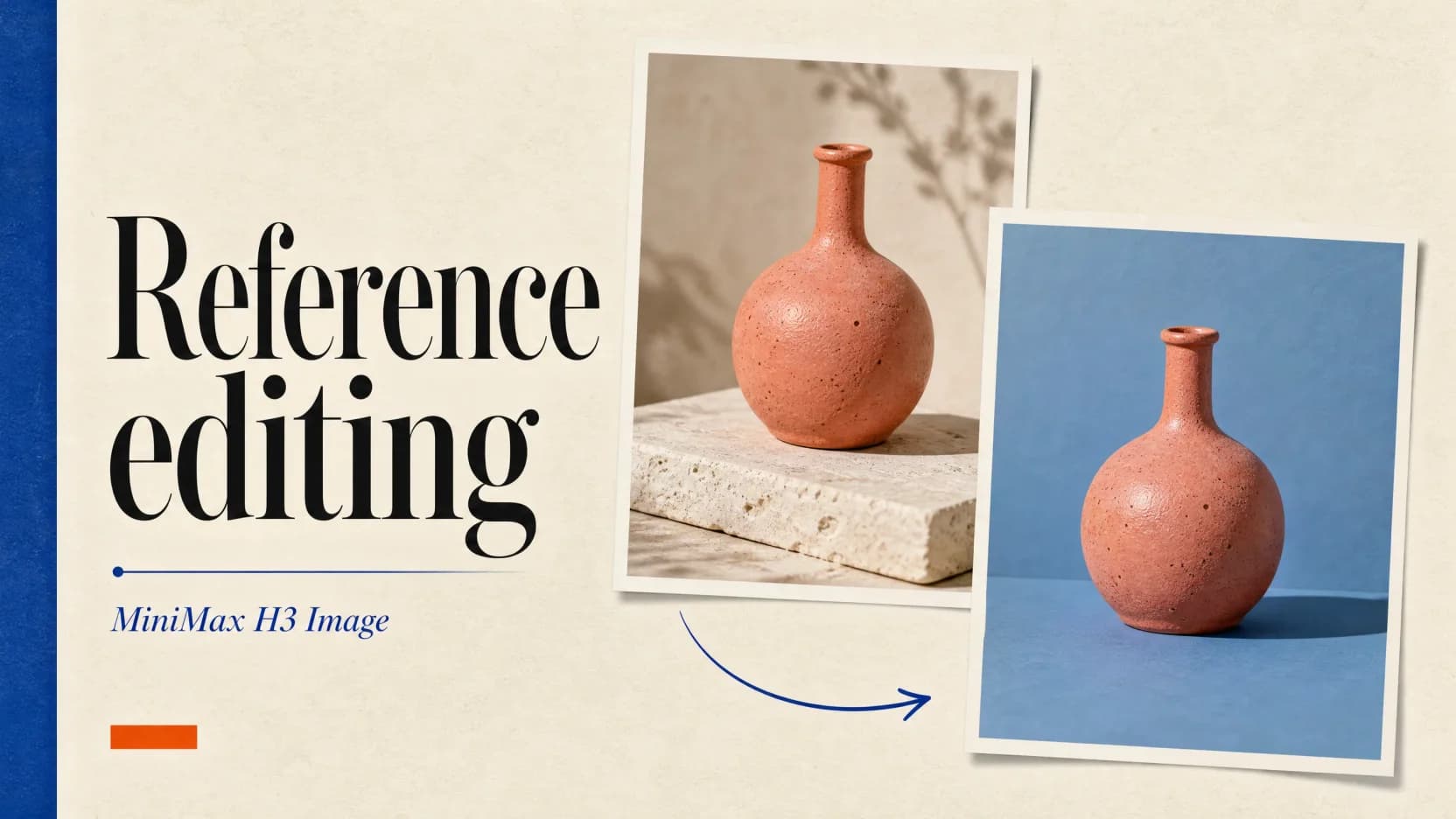
MiniMax H3 Image reference editing starts with a precise brief: identify what each image contributes, describe the finished picture, and say which details remain unchanged. MiniMax's image service accepts one to sixteen references for an edit, and MiniMax H3 Image Highspeed uses the same parameters and limits.[1]
A useful prompt makes those relationships explicit. A product photo might supply the object, a second image its new color, and the original photo its framing. This guide turns MiniMax's official image-editing instructions into a practical workflow, with original prompt examples and a review checklist. The examples are illustrative and have not been tested with either model.
Cover: an editorial illustration of perfume-bottle references and a background-color change. It is not a MiniMax test result.
TL;DR
- Give each reference a defined purpose. MiniMax's image-specific guide uses
Picturelabels in input order andSubjectlabels for the content or properties being tracked.[2] - Describe the final image in one paragraph: sources first, then the intended result and preservation relationships, then changed or new details.[2]
- Treat moving, recoloring or relighting an object as a change. “Fully preserved” applies to the entire scope you defined.[2]
- Choose the output canvas deliberately. Input-reference limits and output-image limits differ; an area label such as
2Kdoes not specify the longest edge.[1] - Image edits always use prompt enhancement. The official response includes
revised_prompt, which helps explain how the instruction was expanded.[3]
Build a MiniMax H3 Image edit from reference roles
Before writing, inspect the actual reference images at a readable size. Identify the object to change, nearby details that matter, and any text that must survive. If a label is unreadable, obtain a clearer source before asking for an exact text replacement. MiniMax's guide specifically advises against guessing obscured text, hidden details or exact color values.[2]
Give each source a specific job
For a MiniMax H3 Image edit, distinguish the base composition from a donor reference. The base answers “Where does everything go?” A donor might supply a person's appearance, an object's texture or one color. Borrowing a color does not require importing the donor's shape, background or lighting.
Suppose Picture 1 shows a desk lamp on a shelf and Picture 2 shows a paint sample. The lamp is one subject. The sample's color is another. Defining the second subject as the color makes the intended transfer narrower than defining the entire sample card as a subject.
Keep the numbering stable. If you reorder the inputs, update every Picture reference in the brief. For several views of the same object, identify each relevant image explicitly so the reader can trace every instruction to a source.[2]
Separate preservation from changes
MiniMax H3 Image's official prompt guide distinguishes four relationships: full preservation, partial preservation, attribute transfer and a loose stylistic reference. They express different intentions.[2]
| Intended result | Relationship to describe | Detail to make explicit |
|---|---|---|
| An adjacent object stays as shown | Full preservation | Define that object separately from the edited area |
| A lamp changes color | Partial preservation | Retain shape, material and placement; change the finish |
| A lamp borrows a sample's color | Attribute transfer | Transfer color without the sample card's texture or shape |
| A background borrows a painted mood | Weak reference | State which qualities may be adapted |
A common contradiction is asking for an entire product to be fully preserved while replacing its label. Narrow the preserved scope to the bottle's shape and placement, or mark the bottle as partially preserved. New shadows also affect the surrounding surface, so a lighting change needs room in the brief for those consequences.
Write the finished state
MiniMax's dedicated image guide recommends one continuous paragraph, progressing from source definitions to the target and each subject's relationship, then to changed details. It recommends describing what exists in the final image.[2]
For an object removal, specify the surface that fills the gap. For a copied object, state the final count. For a text edit, supply the complete resulting line. These decisions make a MiniMax H3 Image brief easier to inspect before any generation occurs.
Three edits that need different instructions
The following MiniMax H3 Image examples use imaginary reference contents. Replace those descriptions with what is actually visible in your own images. Their purpose is to demonstrate prompt structure; they do not document model outputs.
Recolor one object in an existing scene
Assume Picture 1 shows a gray desk lamp on the left of a wooden shelf and a small clock on the right. The requested change affects only the lamp's finish.
The gray desk lamp on the left in <Picture 1> is <Subject 1>. The clock on the right in <Picture 1> is <Subject 2>. The target image shows <Subject 1> with a muted yellow finish. <Subject 1> is partially preserved: its form, material, size and placement remain, while the surface color changes. <Subject 2> is fully preserved. The new finish follows the lamp's existing shading, and the shelf, background and original framing remain unchanged.The preservation clause gives you a concrete review task: check the shade's outline, the base, the clock face and the shelf edges. A pleasing yellow lamp is only one part of the requested result.
Transfer a property from a second reference
Now use the same lamp photo as Picture 1 and a paint sample as Picture 2. For this MiniMax H3 Image prompt, the sample supplies only its visible color.
The desk lamp in <Picture 1> is <Subject 1>. The flat color field at the center of the paint sample in <Picture 2> is <Subject 2>. The target image retains the composition of <Picture 1> and shows <Subject 1> with a new finish. <Subject 1> is partially preserved: its shape, size, material and position remain while its color changes. <Subject 2> supplies the exact color transferred to <Subject 1>. The finish follows the lamp's existing shading without importing the sample card's paper texture, border or lettering. The surrounding scene remains unchanged.“Exact” expresses the requested transfer. It is not evidence that the generated file matches a measured color value. If color accuracy matters to the deliverable, compare the output with the source under a consistent color-management workflow.
Replace a complete line of visible text
Assume a café sign clearly reads “OPEN DAILY” on its first line and “8 AM — 6 PM” on its second. The new closing time is 7 PM. MiniMax's guide calls for recording readable source text and specifying the complete resulting wording for the changed line.[2]
The two-line café sign in <Picture 1>, reading 'OPEN DAILY' above '8 AM — 6 PM', is <Subject 1>. The target image shows the same sign with updated opening hours. <Subject 1> is partially preserved: the sign's position, border, colors, letter style and first line remain, while the second line reads '8 AM — 7 PM'. The replacement line occupies the existing second-line area with the same alignment. The wall and the rest of the image remain unchanged.For this MiniMax H3 Image edit, review every character at full size. Also check spacing and alignment: a correct time placed outside the sign would still fail the brief. Keep the supplied hours as the source of truth; the model should not invent business information.
Set the canvas for MiniMax H3 Image edits
MiniMax H3 Image references and outputs have separate geometry rules. A reference image can have a long-to-short-side ratio up to 4:1, while the official output range is 1:3 through 3:1. A valid panoramic reference therefore does not guarantee an identically proportioned output.[1]
| Setting | Official image-service rule | What it means for the brief |
|---|---|---|
| Reference count | 1–16 images | Number references in the supplied order |
| Reference dimensions | Each dimension 128–8192 pixels | Check the original file dimensions |
| Reference formats | JPG, JPEG, PNG, WEBP, HEIC, HEIF | Prepare an accepted source format |
| Reference file size | Up to 64 MiB per image; request body also capped at 64 MiB | File limits and total request limits both apply |
| Fixed output dimensions | 655,360–20,000,000 total pixels; ratio 1:3–3:1 | Choose a permitted canvas before describing the layout |
| Automatic sizing | Aspect ratio plus an optional 1K, 2K or 4K area level | Read the returned dimensions instead of assuming an edge length |
These limits are documented for MiniMax's service, including MiniMax H3 Image Highspeed.[1] For example, MiniMax lists 2K at 16:9 as 2720 × 1536 pixels. Fixed width and height cannot be combined with the aspect-ratio or area settings.[3]
For a local MiniMax H3 Image edit, retain the base photo's framing when that is the intended composition. If you want a wider poster, describe the newly exposed space and the object's placement. Making the lamp smaller within the picture and making the picture wider are separate instructions.
Inspect the result before changing the prompt
A MiniMax H3 Image review should follow the brief's promises. Start with the requested change, then check every detail you intended to preserve. Compare the result with the original reference, including after several rounds of edits; otherwise small changes can become harder to notice.
| What you observe | What to check in the brief | A useful next revision |
|---|---|---|
| The intended object is wrong | Picture order and subject description | Identify the object by location and visible features |
| A donor's background appears | Whether the donor was defined too broadly | Name the single property being transferred |
| Other details drift | Conflicting or underspecified preservation scopes | Separate important neighboring objects and simplify the requested change |
| Text is inaccurate | Whether the entire source and target line were supplied | Verify the source, then provide the complete replacement wording |
| The crop changes | Base composition versus donor framing | Specify the intended canvas and placement |
These are diagnostic suggestions, not tested fixes or guarantees of pixel-level preservation. The official MiniMax H3 Image API always enhances edit prompts and returns the expanded instruction in revised_prompt. If that field is available in your workflow, inspect it alongside the output for changed scope, extra detail or ambiguous references.[3]
Keep a short record of the source images, their order, your exact prompt, output dimensions and the defects you observed. When comparing MiniMax H3 Image with the Highspeed variant, use the same brief and the same inspection criteria. Shared parameters alone do not establish equal visual quality or a particular speed advantage.
Frequently asked questions
How many reference images can MiniMax H3 Image use?
The official edit service accepts one to sixteen images. Each needs a clear role in the prompt. Use additional references when they supply information the edit actually needs; the maximum is a limit, not a recommended target.[1]
What prompt format does the image-editing guide recommend?
One continuous plain-text paragraph: define the referenced content, describe the target and each subject's relationship, then complete the changed or new details. MiniMax publishes a dedicated H3 Image guide for this format.[2]
Does “fully preserved” guarantee an unchanged object?
It states your intent. In MiniMax's writing guide, the phrase covers the entire defined scope, including placement and appearance. Inspect the generated result to establish whether it met that instruction; prompt wording alone cannot prove preservation.[2]
Can prompt enhancement be disabled for edits?
MiniMax H3 Image edits always apply enhancement in the official API. Disabling enhancement is documented for text-to-image generation, which is a separate operation. Keep the edit's returned revised_prompt if you need to understand the expanded instruction.[1]
Does 4K mean an image is 4096 pixels wide?
The 4K area level targets 4096 × 4096 total pixels before the aspect ratio determines the width and height. A rectangular output can have a longer edge above 4096 pixels. Check the actual returned dimensions.[1]
Are masked edits or transparent backgrounds supported?
MiniMax's official image-service guide lists masked edits and transparent backgrounds as unsupported. A PNG output option alone does not establish transparent-background support. Plan an ordinary reference-based edit within that documented scope.[1]
Does MiniMax H3 Image Highspeed need a different editing prompt?
Both variants take the same official parameters and limits. You can use the same reference brief as a starting point, then inspect each result. The documentation cited here does not establish a universal speed multiplier or quality ranking.[3]
Keep the brief with the image
A finished MiniMax H3 Image edit needs a clear acceptance check: the requested change is present, retained details still match the reference, text is correct, and the dimensions suit the intended placement. Keep those criteria with the source files so another person can review the result without reconstructing your intent.
For the model overviews, see MiniMax H3 Image and MiniMax H3 Image Highspeed. Both pages include a playground, current token rates and API documentation. This guide describes MiniMax's documented editing workflow; use your own references to evaluate whether the result meets your brief.
References
[1] MiniMax. Image Generation Guide. Model specifications, reference-image limits, sizing, enhancement and unsupported features. Accessed November 12, 2026.
[2] MiniMax-AI. Reference-image edit prompt writing guide. Official H3 Image source definitions, preservation relationships, canvas rules and text-edit guidance. Accessed November 12, 2026.
[3] MiniMax. Image Edit reference. Supported models, shared limits, automatic prompt enhancement and returned image fields. Accessed November 12, 2026.